
How to Transfer eSIM to Another iPhone: Easy Step-by-Step Guide (2026)
If you’ve just upgraded your iPhone and you’re wondering how to transfer eSIM to another iPhone, you’re in exactly the right place. your resident eSIM + iPhone troubleshooting nerd, and in this guide I’ll show you:
-
The different ways to move an eSIM
-
How it works on newer iPhones with iOS 17/18
-
What to do if your carrier or phone doesn’t support quick transfer
-
How to avoid common errors that break calls or data
We’ll keep everything simple, step-by-step, and beginner-friendly.
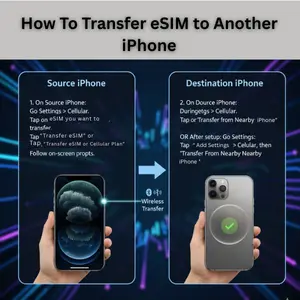
Quick Answer: How to Transfer eSIM to Another iPhone
In 2025, you can usually transfer your eSIM in three main ways:
-
Quick Transfer during iPhone setup (Apple’s built-in “Transfer eSIM” option)
-
Transfer eSIM later via Settings on your new iPhone
-
Ask your carrier or eSIM provider to reissue or move your eSIM
Which method you use depends on:
-
Your iPhone models (old and new)
-
Your iOS version
-
Whether your carrier supports eSIM transfer
Requirements Before You Start
Before you try how to transfer eSIM to another iPhone, make sure:
-
Both phones are compatible with eSIM
-
Both phones run a recent iOS version (ideally iOS 17 or later)
-
Your carrier supports eSIM on iPhone and eSIM transfer
-
You have:
-
Wi-Fi or mobile data
-
Your Apple ID and iCloud working on at least the new phone
-
Old iPhone powered on and nearby (for quick transfer)
-
Important: In many cases, once you transfer the eSIM, it will stop working on the old iPhone. Make sure you don’t need that line active on the old device anymore.
Method 1: Transfer eSIM During New iPhone Setup (Quick Start)
If your new iPhone is brand new or factory reset, this is the easiest and cleanest method.
Step-by-Step: Quick Transfer While Setting Up
-
Turn on your new iPhone
-
Place it near your old iPhone.
-
-
On your old iPhone, you’ll see a “Set Up New iPhone” pop-up.
-
Tap Continue.
-
-
Follow the on-screen instructions to:
-
Connect to Wi-Fi
-
Sign in with your Apple ID
-
Choose to transfer data from your old iPhone
-
-
When you reach the “Cellular” or “eSIM” screen, look for:
-
“Transfer eSIM” or
-
“Add Cellular Plan” showing your existing line
-
-
Select the line you want to transfer.
-
Confirm the transfer on your old iPhone when it asks to approve.
-
Wait while your new iPhone:
-
Downloads and activates the eSIM
-
Shows your plan as active in Settings → Cellular
-
After activation:
-
Your eSIM line should work only on the new iPhone
-
Test with a quick call or SMS
Method 2: Transfer eSIM to Another iPhone via Settings (After Setup)
Already set up your new iPhone and skipped that part? No problem. You can still do how to transfer eSIM to another iPhone later from Settings (if your carrier supports it).
This works best when both devices are on iOS 16+ and the carrier supports “Transfer eSIM” directly between iPhones.
On the New iPhone
-
Go to Settings → Cellular (or Mobile Data).
-
Tap Add eSIM or Add Cellular Plan.
-
Choose “Transfer From Nearby iPhone” (wording can vary slightly).
-
Your new iPhone will now look for your old iPhone.
On the Old iPhone
-
Make sure Bluetooth and Wi-Fi are turned on.
-
You should see a prompt to transfer the eSIM.
-
Select the line you want to move.
-
Confirm the transfer.
Back on the New iPhone
-
Follow the on-screen steps to complete activation.
-
Once done, go to Settings → Cellular on the new iPhone:
-
Check that your eSIM line appears and is enabled.
-
-
Make a test call or use mobile data to confirm.
If this option doesn’t appear, your carrier or region may not support device-to-device eSIM transfer. In that case, use Method 3.
Method 3: Transfer or Reissue eSIM via Carrier / eSIM Provider
If you don’t see “Transfer From Nearby iPhone” or your eSIM is from a travel provider, you probably need to reinstall or reissue the eSIM.
Typical Ways Carriers Handle It
Depending on the provider, you might:
-
Log into their app and choose “Move eSIM to New Device”
-
Log into your online account and request a new QR code
-
Chat or call support and ask them to deactivate old eSIM and send a new one for your new iPhone
Once they send you a new QR or activation code, do this on your new iPhone:
-
Go to Settings → Cellular → Add eSIM.
-
Scan the QR code or choose “Use QR Code”.
-
If needed, tap Enter Details Manually and enter:
-
SM-DP+ Address
-
Activation Code
-
Confirmation code (if given)
-
-
Follow the prompts to finish.
Many carriers automatically deactivate the old eSIM when a new one is activated on your new iPhone. Don’t worry if the old device loses signal — that’s normal.
Comparison Table: eSIM Transfer Methods
| Method | Best For | Requirements | Pros | Cons |
|---|---|---|---|---|
| Quick Transfer (Setup) | New iPhone that isn’t set up yet | Old iPhone nearby, both on recent iOS, carrier support | Clean, fast, done during setup | Needs both phones at same time |
| Transfer via Settings | New iPhone already set up | Same Apple ID recommended, recent iOS, carrier support | No reset needed, done from Settings | “Transfer from Nearby iPhone” may not show for all carriers |
| Carrier / eSIM Provider Reissue | Travel eSIMs, unsupported carriers, failed transfers | Carrier account/app or support | Works even when Apple transfer isn’t supported | Can be slower; sometimes extra fees |
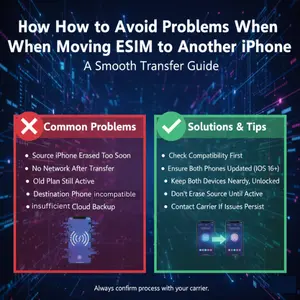 How to Avoid Problems When Moving eSIM to Another iPhone:
Because we’re talking about how to transfer eSIM to another iPhone, let’s prevent the most common headaches.
1. Don’t Factory Reset the Old iPhone Too Soon
Wait until:
-
Your eSIM shows as active on the new iPhone
-
You can call, text, and use data on the new device
Only then should you:
-
Sign out of Apple ID
-
Erase or reset the old iPhone (if you plan to sell it)
2. Keep Wi-Fi On During Transfer
Many activations need:
-
A short connection to your carrier’s server
-
A contact with Apple’s activation server
Drop in Wi-Fi can fail activation and cause errors like “eSIM cannot be added.”
3. Make Sure the New iPhone Is Unlocked (If You Use Another Carrier)
If you plan to use an eSIM from a different carrier on the new phone:
-
Check if your new iPhone is carrier-locked
-
Locked phones often block non-original carriers from working
You can check under Settings → General → About → Carrier Lock.
Troubleshooting: eSIM Transfer Errors
Here are some common error situations and what you can do.
Error: “Transfer Not Supported” or No Transfer Option
-
Your carrier may not support eSIM transfer between iPhones yet.
-
Solution:
-
Use Method 3 (carrier reissue / QR code), or
-
Contact support and ask for a new eSIM for your new device.
-
Error: “No Service” After Transfer
-
Turn Airplane Mode on and off.
-
Restart your new iPhone.
-
Check Settings → Cellular:
-
Make sure the line is turned on.
-
-
Check with your carrier if:
-
The eSIM is activated on their side
-
Your line isn’t suspended or blocked
-
Error: Data Not Working but Calls Work
-
Go to Settings → Cellular → Cellular Data
-
Make sure the correct line is selected for data
-
Turn off any VPN while testing
-
Check if the plan is data only or has limited regions
Can I Keep the eSIM on Both iPhones?
In most cases: no.
-
Carriers usually allow your eSIM line to be active on one device at a time.
-
When you transfer or reissue, the old one is deactivated.
Some travel eSIMs might temporarily work on multiple devices if they give you a fresh QR each time, but that’s not standard and depends on the provider’s policy.
When You Should NOT Transfer eSIM Yet
Hold off on moving your eSIM if:
-
You still need both phones active for a short period (e.g., work vs personal)
-
You haven’t backed up your old iPhone (iCloud or computer)
-
You’re not sure your new iPhone is unlocked or supported by your carrier
In those cases, back up first, confirm carrier compatibility, then move the eSIM.
FAQ: How to Transfer eSIM to Another iPhone
1. Can I transfer eSIM to another iPhone without QR code?
Yes, if:
-
Your carrier supports eSIM transfer between iPhones
-
You use Quick Transfer during setup or Transfer From Nearby iPhone in Settings
If not supported, you’ll need a QR code or manual activation code.
2. Do I need my old iPhone for eSIM transfer?
-
For Apple’s direct transfer methods → Yes, you need the old phone nearby.
-
For carrier reissue → No, you only need your new phone and the QR/activation info.
3. Will I lose my number when I transfer eSIM?
No.
-
Your phone number stays the same.
-
You’re just moving the line from one device to another.
4. Can I transfer a travel eSIM to another iPhone?
Sometimes.
-
Some travel eSIMs are locked to one device once activated.
-
Others allow reinstallation via their app or support.
-
Check your provider’s help docs or contact their support.
Final Thoughts
Now you know exactly how to transfer eSIM to another iPhone:
-
Use Quick Start if you’re setting up a new iPhone from scratch
-
Use Settings → Add eSIM → Transfer From Nearby iPhone if your carrier supports it
-
Use your carrier / eSIM provider to reissue the eSIM if the Apple options don’t show up
Take it slow, test calls and data after the move, and don’t wipe your old phone until you’re 100% sure your line works on the new one.
