
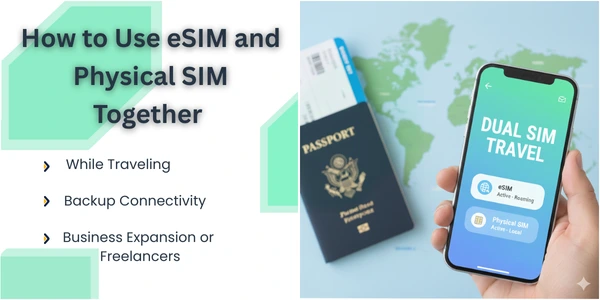
How to Use eSIM and Physical SIM Together While Traveling (Dual SIM Tips)
If you want to use eSIM and physical SIM together while traveling, you’re already smarter than most travelers.
Instead of swapping SIM cards and losing your home number, you can:
-
Keep your physical SIM for calls, SMS, banking OTPs, and WhatsApp
-
Use a travel eSIM for cheap data abroad
This guide shows you exactly how to set up and use Dual SIM on both iPhone and Android, step by step. We’ll also cover dual SIM iPhone travel tips, dual SIM Android basics, and how to manage two numbers abroad without stress.
1. Why Use eSIM and Physical SIM Together When Traveling?
Using both SIMs together gives you the best of both worlds:
Benefits
-
Keep your home number active
-
Receive SMS codes (banks, OTPs)
-
Stay reachable for family or work
-
-
Get cheap local or regional data with eSIM for travel
-
Avoid crazy roaming charges
-
Use Google Maps, WhatsApp, Uber, socials, etc.
-
-
One phone, two numbers
-
No need to carry a second phone
-
Easy to manage calls and data in Settings
-
Common Setup While Traveling
Most travelers use:
-
Physical SIM → Home country number
-
eSIM → Travel data plan for the country or region they’re visiting
2. Does Your Phone Support Using eSIM and Physical SIM Together?
Before you worry about settings, you must confirm if your phone supports Dual SIM (eSIM + physical SIM).
iPhone – Basic Compatibility
In general, eSIM + physical SIM works on:
-
iPhone XR, XS, XS Max and newer
-
iPhone 11, 12, 13, 14, 15, SE (2nd & 3rd gen)
-
Some US models are eSIM-only (no tray), but still support two eSIMs at once
If your iPhone supports Dual SIM, you can usually use eSIM and physical SIM together for travel.
Android – Basic Compatibility
Many mid–to–high-end Android phones support:
-
Dual SIM (2 physical SIMs)
-
Or 1 physical SIM + 1 eSIM
Examples (varies by model/region):
-
Google Pixel (most recent models)
-
Samsung Galaxy S / Note / some A series
-
Newer Xiaomi, OnePlus, etc.
– Tip:
Go to Settings → Connections / Network & Internet → SIM Manager / SIM cards.
If you see eSIM or “Add eSIM,” your phone likely supports it.
3. Quick Comparison: eSIM vs Physical SIM While Traveling
| Feature | Physical SIM (Home) | eSIM (Travel) |
|---|---|---|
| Type | Plastic card in SIM tray | Digital SIM profile in your phone |
| Typical Use While Traveling | Keep number for calls/SMS/OTP | Cheap data & local calls in destination |
| Flexibility | Harder to switch on the go | Easy to add/change via QR or app |
| Risk | Can lose or damage the card | No physical card to lose |
| Best For | Main number, banking, WhatsApp ID | Data, maps, apps, social media, VoIP calls |
Using them together = strong combo for travel.
 4. How to Use eSIM and Physical SIM Together on iPhone (Dual SIM iPhone Travel Tips)
Let’s start with iPhone, since many travelers use it.
Step 1) Install Your Travel eSIM
You usually get the travel eSIM from:
-
A local carrier in your destination
-
A global travel eSIM provider (via app or QR code)
Then:
-
Open Settings
-
Tap Cellular (or Mobile Data)
-
Tap Add eSIM or Add Cellular Plan
-
Scan the QR code or follow instructions in the provider’s app
-
Tap Add Cellular Plan to finish
Now you have two lines:
-
Physical SIM → Home number
-
eSIM → Travel data/number
Step 2) Label Your SIMs Clearly
Still in Settings → Cellular:
-
Tap each line and give it a label like:
-
Home, Work, Travel, EU Trip, etc.
-
Clear labels make it easier to manage two numbers abroad.
Step 3) Choose Which SIM Is Used for What
iPhone lets you choose:
-
Default voice line (for calls & SMS)
-
Line for iMessage & FaceTime
-
Line for Mobile Data
For travel, a common setup:
-
Calls & SMS → Home physical SIM
-
Mobile Data → Travel eSIM
You can set this in Settings → Cellular → Default Voice Line and Cellular Data.
Step 4) Turn Roaming Off on Your Home SIM
To avoid bill shock:
-
Go to Settings → Cellular → [Home SIM]
-
Turn Data Roaming OFF
-
Keep Voice roaming off or on depending on if you want to receive regular calls (beware of roaming charges)
You can still receive SMS/OTP over your home network in many cases, even without using mobile data.
Step 5) Use Apps Over Travel eSIM Data
Once your travel eSIM is set as the data line, you can:
-
Use WhatsApp / Telegram / Messenger to call and message over data
-
Keep your home number active for logins and banking
-
Use Wi-Fi calling if your carrier supports it
5. How to Use eSIM and Physical SIM Together on Android (Dual SIM Android)
Each Android brand has slightly different menus, but the logic is the same.
Step 1) Add Your Travel eSIM
-
Open Settings
-
Go to Connections, Network & Internet, or SIM Manager (name depends on brand)
-
Look for eSIM or Add eSIM / Add mobile plan
-
Scan the QR code or install via your provider’s app
-
Confirm to add the plan
Now you’ll see SIM 1, SIM 2, and sometimes eSIM in the SIM management screen.
Step 2) Pick Which SIM Does What
In the SIM management / SIM cards screen, most Android phones let you pick:
-
Preferred SIM for Calls
-
Preferred SIM for SMS
-
Preferred SIM for Data
For travel:
-
Set Mobile Data → Travel eSIM
-
Keep Calls/SMS → Home SIM (or choose “Ask Every Time” if you want manual control)
Step 3) Turn Off Data Roaming on Home SIM
To avoid roaming charges:
-
Open SIM settings for your home SIM
-
Switch Data Roaming OFF
-
Leave it only for calls/SMS if needed
Step 4) Use “Ask Every Time” for Calls (Optional)
Some Android phones let you choose “Ask every time” for calls:
-
Every time you dial, it asks “SIM 1 or SIM 2?”
-
This is useful when you want to use local call rates sometimes, and your home SIM at others.
6. Best Practices: eSIM for Travel, Physical SIM for Home Number
Here’s a simple guide to manage two numbers abroad smoothly.
Recommended Setup
-
Physical SIM (Home)
-
Keep for:
-
OTPs & banking
-
Family, employer, key contacts
-
-
Turn data roaming off
-
-
eSIM (Travel)
-
Use for:
-
Data (Google Maps, WhatsApp, Uber, social apps)
-
Local calls if plan includes minutes
-
-
Set as main data line
-
Tips to Avoid Confusion
-
Rename lines clearly (Home / Travel)
-
Double-check which SIM is set for data before your trip
-
Tell close contacts:
-
Use WhatsApp or Telegram instead of normal calls if you prefer
-
-
Take screenshots of your SIM settings before changing anything, in case you need to restore
7. Managing Data, Calls & Costs While Using Two SIMs
Data Strategy
-
Keep data ON only for your travel eSIM
-
Use Wi-Fi when you can to save eSIM data
-
Many travel eSIM plans are data-only, so you’ll use apps for calls
Call Strategy
-
Keep normal calls on home SIM only if:
-
Your roaming rates are reasonable or
-
You absolutely must be reachable on that number
-
-
Otherwise, ask people to:
-
Call you on WhatsApp / Telegram / FaceTime Audio / Messenger
-
SMS & OTPs
-
Do not remove your home SIM
-
Keep it:
-
Active but with roaming data off
-
So you can still get OTPs and security messages
-
8. Example Setups (Real Travel Scenarios)
Example 1 – iPhone User from USA Going to Europe
-
Physical SIM: US number
-
eSIM: Europe travel eSIM (data)
Setup:
-
Data → Travel eSIM
-
Calls/SMS → US SIM
-
Data roaming → OFF on US SIM
Result:
You use cheap EU data + keep your US number alive for OTP and messages.
Example 2 – Android User from UK Going to Turkey
-
SIM 1 (Physical): UK carrier
-
eSIM: Turkey data package
Setup:
-
Preferred Data → eSIM (Turkey)
-
Calls/SMS → SIM 1 (UK) or “Ask Every Time”
-
Data roaming → OFF for SIM 1
Result:
You avoid expensive UK roaming data and use local data via eSIM.
9. Common Mistakes When Using eSIM and Physical SIM Together
Avoid these to save money and headaches:
-
Leaving data roaming ON on the home SIM
-
Forgetting which SIM is set as default for data
-
Removing the home SIM and then not being able to receive bank SMS / OTPs
-
Not labeling SIMs, then choosing the wrong one when calling
10. FAQs – Using eSIM and Physical SIM Together While Traveling
1. Can I use eSIM and physical SIM together on my phone?
Yes, if your phone supports Dual SIM with eSIM. Many iPhones (XR and newer) and newer Android phones can use one physical SIM + one eSIM at the same time.
2. Is it better to use eSIM for travel and physical SIM for home number?
In most cases, yes.
A travel eSIM is perfect for data and local usage, while your physical SIM keeps your home number active for important messages and calls.
3. Will I still receive SMS and calls on my home number abroad?
Yes, as long as:
-
Your home SIM stays in the phone and is active, and
-
Your carrier allows roaming for calls/SMS in that country
You can still turn off data roaming and receive SMS/calls in many cases (check your carrier’s policy).
4. Can I use two eSIMs and no physical SIM?
On some newer phones (like recent iPhones and certain Android models), yes.
But this depends on the device – some support dual eSIM, some are eSIM + physical SIM only.
5. What if my phone does not support eSIM?
You have three options:
-
Use physical local SIM and temporarily remove your home SIM
-
Use a second cheap phone for local SIM/eSIM
-
Use your home SIM only on Wi-Fi and avoid roaming
Final Thoughts
If you:
-
Use eSIM and physical SIM together smartly,
-
Turn data roaming OFF on your home SIM, and
-
Use the eSIM for travel data
…you’ll travel with fast internet, low costs, and no risk of losing your home number.
Start by checking if your phone supports eSIM, then follow the steps in this guide for Dual SIM iPhone travel tips or dual SIM Android setup, and you’ll be ready to manage two numbers abroad like a pro.
Related Posts
