
How to Turn Off , Remove eSIM on iPhone : Step by Step Quide
Managing your eSIM on an iPhone is simple once you know where the settings are. Whether you want to turn off, remove, or change an eSIM, this guide explains every method clearly. As an eSIM troubleshooting specialist, I’ll walk you through the exact steps you need to follow on any modern iPhone.
This guide works for:
-
iPhone XR
-
iPhone XS / XS Max
-
iPhone 11 series
-
iPhone 12 series
-
iPhone 13 series
-
iPhone 14 series (eSIM-only in USA)
-
iPhone 15 series
1. How to Turn Off eSIM on iPhone (Quick Switch Off)
Turning off your eSIM does not delete it. It simply disables the line temporarily.
Follow these steps:
-
Open Settings
-
Tap Mobile Data (or Cellular)
-
Select your eSIM line
-
Toggle Turn On This Line → OFF
Your eSIM will stop using data, calls, and messages.
You can turn it back on anytime.
When should you turn off your eSIM?
-
When traveling
-
When switching to your physical SIM
-
When your phone has signal issues
-
When troubleshooting your mobile data
-
When using two lines and you want one disabled
2. How to Remove an eSIM on iPhone (Delete eSIM Profile)
Removing an eSIM will delete it permanently from your phone.
You can re-add it only if your carrier supports re-download.
To remove an eSIM:
-
Open Settings
-
Tap Mobile Data
-
Choose the eSIM plan you want to remove
-
Scroll down and tap Delete eSIM
-
Confirm removal
Your iPhone will restart or refresh the network settings.
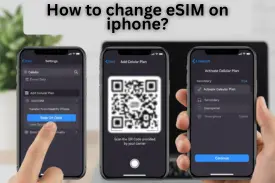 3. How to Change an eSIM on iPhone
If your question is “How do I change eSIM on iPhone?” the answer depends on what you want to change:
A. Change eSIM Data Plan / Switch to a New eSIM
-
Delete your old eSIM
-
Scan the QR code for your new eSIM
-
Tap Add eSIM
-
Confirm activation
This is useful when:
-
Switching carriers
-
Upgrading your plan
-
Moving from a local SIM to a travel eSIM
B. Change Which eSIM Is Active (Dual SIM Mode)
If you have multiple eSIMs:
-
Go to Settings → Mobile Data
-
Choose the line you want active
-
Select Turn On This Line
-
Turn off the other line if needed
C. Change Default Line for Calls, Data, or iMessage
iPhone allows separate settings for each:
To change call line:
Go to Settings → Mobile Data → Default Voice Line
To change data line:
Go to Settings → Mobile Data → Mobile Data
To change iMessage/FaceTime line:
Go to:
Settings → Messages → Send & Receive
or
Settings → FaceTime
Choose the number you want to use.
4. Table: Difference Between Turning Off, Removing & Changing eSIM
| Action | What It Does | Use When |
|---|---|---|
| Turn Off eSIM | Disables the line temporarily | You want to stop using data/calls but keep the eSIM |
| Remove eSIM | Deletes the eSIM from your phone | You’re switching carriers or selling your phone |
| Change eSIM | Replace, switch, or update an eSIM | You need a new plan, data line, or number |
5. Troubleshooting: eSIM Not Turning Off, Removing, or Changing
1. You don’t see “Delete eSIM”
Possible causes:
-
Carrier locked
-
Outdated iOS
-
Corporate/enterprise eSIM
-
Carrier restricted the profile
Fix:
-
Update iOS
-
Contact your carrier
-
Restart your iPhone
2. “eSIM cannot be removed while in use” error
Disable this first:
-
Mobile Data
-
Default Voice Line
-
iMessage / FaceTime number
-
Personal Hotspot
Then try deleting again.
3. Cannot download new eSIM
Try these fixes:
-
Turn Airplane Mode ON → OFF
-
Restart iPhone
-
Reset Network Settings
-
Check Wi-Fi connection
-
Contact eSIM provider for re-activation
4. Signal not working after changing eSIM
Try:
-
Toggle Airplane Mode
-
Turn line OFF → ON
-
Manually select carrier
-
Reset Network Settings
6. How to Reset Network Settings (If Needed)
If your eSIM is stuck, resetting helps.
Steps:
-
Go to Settings
-
Tap General
-
Tap Transfer or Reset iPhone
-
Choose Reset
-
Tap Reset Network Settings
This will not delete your eSIM , don’t worry.
7. Frequently Asked Questions
Can I temporarily turn off an eSIM on iPhone?
Yes. Just toggle Turn On This Line to off. It does not delete the eSIM.
Will deleting my eSIM cancel my plan?
No. Deleting the eSIM removes it from your phone only.
Your plan stays active unless you contact your carrier.
Can I use multiple eSIMs on my iPhone?
Yes. Most iPhones support several eSIMs, but only two can be active at the same time.
How do I change my eSIM to another iPhone?
You must delete it from the old device and re-download it on the new one , if your carrier supports transfer.
Can I switch from eSIM to a physical SIM?
Yes, but you must ask your carrier to give you a physical SIM card.
Why does the USA iPhone 14/15 not have a SIM tray?
Apple made them eSIM-only to simplify activation and improve security.
Final Thoughts
Managing an eSIM on your iPhone is easy once you know where to look. You can turn off, remove, or change an eSIM in just a few steps using the Mobile Data settings. Whether you’re switching carriers, upgrading plans, or troubleshooting, these methods help you stay in control of your connection.
