
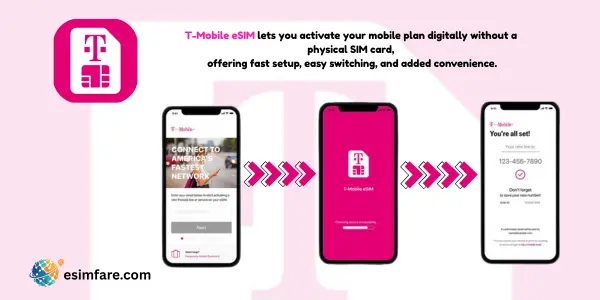
What Is T-Mobile eSIM?
T-Mobile eSIM is a built-in, digital SIM profile. It replaces a physical SIM and lives inside your compatible phone or wearable. You can add, switch, or delete plans right from settings.
Why people choose it
-
Instant activation via app/QR
-
Two lines on one phone (work + personal or home + travel)
-
Easy device transfers when upgrading
-
Eco-friendly (no plastic or shipping)
Who Is T-Mobile eSIM Best For?
-
New customers who want same-day activation from home
-
Existing users swapping devices or replacing a lost SIM
-
Business users who keep work and personal lines separate
-
Travelers who keep T-Mobile for calls/OTP and add a travel eSIM for cheaper data abroad
Device Compatibility (Check This First)
Most recent iPhone, Pixel, and premium Samsung models support eSIM.
-
iPhone: Settings → General → About → look for EID/Digital SIM
-
Android (Samsung/Pixel): Settings → Connections → SIM Manager → Add eSIM
-
Ensure the phone is unlocked (or eligible on T-Mobile).
-
If you’ve added many eSIMs before, delete old profiles to free a slot.
Key Benefits of T-Mobile eSIM
-
App or QR activation in minutes
-
Dual-SIM controls: assign data/voice/SMS per line
-
Nationwide 4G/5G (plan/device dependent)
-
Wearable support in many regions (check watch plans)
-
Add-ons & top-ups from the T-Mobile app
Quick Facts (At a Glance)
| Topic | Summary |
|---|---|
| Activation | T-Mobile app or QR code |
| Setup time | ~5–10 minutes on Wi-Fi |
| Dual-SIM | Yes (label lines, pick a default data line) |
| Travel strategy | Keep T-Mobile for calls/OTP; use a travel eSIM for local data abroad |
| Management | Add/remove/transfer via phone settings & T-Mobile app |
How to Activate T-Mobile eSIM (Step-by-Step)
A) New to T-Mobile
-
Check compatibility and unlock status.
-
Choose a plan in the T-Mobile app or website.
-
Verify identity and complete checkout.
-
Install eSIM
-
App flow: T-Mobile app → Activate/Set up eSIM → follow prompts.
-
QR flow: Settings → Add eSIM → scan the QR provided.
-
-
Set line preferences: choose T-Mobile for Cellular Data (enable Data Roaming only when needed).
-
Test with a call and a web page.
B) Already on T-Mobile (SIM Swap / eSIM Transfer)
-
Sign in to the T-Mobile app on your new phone.
-
Go to Devices/Lines → Activate or Switch and choose eSIM.
-
Follow the guided steps (you may get a fresh QR code).
-
Confirm APN auto-configures (usually automatic).
-
Restart if required and test.
Pro tip: Traveling soon? Keep T-Mobile for calls/OTP and set a separate travel eSIM as your data line to avoid roaming costs.
Pros and Cons
Pros
-
Fast, paperless activation
-
Strong 4G/5G coverage (plan/device dependent)
-
Dual-SIM convenience for work/travel
-
App-based plan management
Cons
-
Features and pricing vary by market/plan
-
Some options are data-only (confirm voice/SMS needs)
-
Hotspot/Fair-Use rules differ, always check plan details
T-Mobile eSIM vs Physical SIM
| Feature | T-Mobile eSIM | Physical SIM |
|---|---|---|
| Setup speed | Instant (app/QR) | Need card in hand |
| Store visit | Not required | Often required |
| Dual-SIM | Built-in (multiple profiles possible) | Depends on SIM trays |
| Transfer to new phone | App-guided | Move/replace the card |
| Sustainability | No plastic | Plastic + packaging |
T-Mobile eSIM vs Roaming vs Travel eSIM
| Option | Pros | Cons | Best For |
|---|---|---|---|
| T-Mobile eSIM (domestic) | Local coverage, one bill | Domestic only unless you add roaming | Primary home line |
| T-Mobile roaming add-ons | Keep your number, simple billing | Costs vary; check latest packs | Short international trips |
| Travel eSIM (third-party) | Often cheaper data overseas | Separate app/account; plan rules vary | Tourists & budget travelers |
Smart combo: Keep T-Mobile for calls/OTP; add a travel eSIM and set it as your data line when abroad.
T-Mobile vs Verizon vs AT&T (eSIM Feature Snapshot)
Generic comparison; specifics vary by plan and location.
| Feature | T-Mobile eSIM | Verizon eSIM | AT&T eSIM |
|---|---|---|---|
| Activation | App & QR | App & QR | App & QR |
| 5G access | Plan/device dependent | Plan/device dependent | Plan/device dependent |
| Dual-SIM controls | Yes | Yes | Yes |
| Roaming options | Add-ons / passes | Add-ons / passes | Add-ons / passes |
| Transfers | App-guided | App-guided | App-guided |
How Much Data Do You Need?
-
Light (maps, chat, email): 1–3 GB/week
-
Moderate (social, browsing): 3–5 GB/week
-
Heavy (video calls/reels): 5–10 GB/week
-
Hotspot work sessions: 1–2 GB/hour (depends on tasks)
Tip: Start small and add data if needed.
Plan Types (High-Level Overview)
-
Postpaid (Go5G family, Magenta legacy, Business): Best for primary lines, premium 5G access, hotspot tiers, and travel add-ons/passes.
-
Prepaid / Pay-as-you-go: Simple pricing and quick eSIM activation; great for short stays or budget users.
-
Data-only lines: For tablets/hotspots/wearables; pair with your phone’s primary voice line.
Tip: For evergreen content, avoid quoting prices. Link to the live plan page and mention benefits/limits (hotspot, international, throttling, deprioritization).
International & Travel Options (At a Glance)
-
Canada/Mexico: Many plans include talk/text + data while roaming (policy varies by plan).
-
Day/Weekly Passes: Premium plans may offer high-speed data passes (and sometimes in-flight Wi-Fi/texting on select airlines).
-
Global Roaming: Basic data in dozens of countries; upgrade with paid passes for faster speeds or hotspot.
-
Best practice: Keep T-Mobile for calls/OTP + add a travel eSIM for heavy data abroad (navigation, social, video).
Wearables, Tablets & Secondary Devices
-
Apple Watch/Android watches: Add a NumberShare/companion plan so calls/SMS mirror your primary number (availability varies by market/plan).
-
iPad/Android tablet: Use a data-only eSIM; optional hotspot from your phone if tablet plans aren’t available where you travel.
Best Practices for Smooth Setup
-
Activate on Wi-Fi and sign in to the T-Mobile app first
-
Label lines (e.g., “T-Mobile – Primary,” “Travel – Data”)
-
Choose the data line carefully to avoid roaming fees
-
Download offline maps before flights
-
Keep your primary number for banking OTP & calls
-
Screenshot QR codes and save plan emails
Troubleshooting (Quick Fixes)
-
No data? Set Cellular Data to the T-Mobile line and enable Data Roaming only if required.
-
APN missing? Add the APN from your activation email/app (often auto-configured).
-
Activation stuck? Toggle Airplane Mode or restart.
-
Dual-SIM confusion? Temporarily disable data on the other line and test.
-
Reached eSIM limit? Delete older profiles you no longer need.
FAQs (tmobile esim)
1) Does T-Mobile eSIM include a phone number?
Many plans support voice/SMS; some options are data-only. Check your plan details.
2) Will I get 5G on T-Mobile eSIM?
If your device and plan support 5G and you’re in coverage, you can access 5G on eSIM.
3) Can I use hotspot/tethering with T-Mobile eSIM?
If your plan includes hotspot, it works on eSIM as well. Review any Fair-Use limits.
4) Can I keep my number when switching to T-Mobile eSIM?
Yes, use the switch/port flow at checkout or in the app, then activate via eSIM.
5) Can I use T-Mobile eSIM with a travel eSIM at the same time?
Yes. Keep T-Mobile for calls/OTP and set the travel eSIM as your data line abroad.
Conclusion
T-Mobile eSIM provides fast activation, dual-SIM convenience, and modern 4G/5G connectivity, without a store visit. It’s great for everyday use and even better for travel when paired with a separate data eSIM. Choose the right plan, activate on Wi-Fi, and enjoy a simple, eco-friendly way to stay connected.
Related Post :
- eSIM for Digital Nomads & Remote Workers: Effective Guide(2025)
-
eSIM for Italy: Best Plans, Prices & Activation Guide (2026)
-
Airalo vs Holafly vs Nomad vs Saily – Which eSIM is Best in 2026?
-
How to Turn Off, Remove eSIM on iPhone: Effective Guide(2026)
-
Maya eSIM: Lightning-Fast Setup, Reliable Travel Data (2026)
- Data Calculator eSIM
